
What a web app is
A web app is a site you can open from an icon on your home screen. It can open in its own window rather than an ordinary browser tab. Which features work depends on the app and browser; the icon alone does not guarantee offline access or notifications.
On iPhone, Apple documents adding a website to the Home Screen and turning on “Open as Web App”. This controls how it opens. Features such as keeping records available without a connection depend on what the particular app supports.
Web apps are used for different kinds of services, including tools you open on a phone and a computer. Whether one suits you depends on its actual features, rather than on assuming it behaves exactly like an app downloaded from a store.
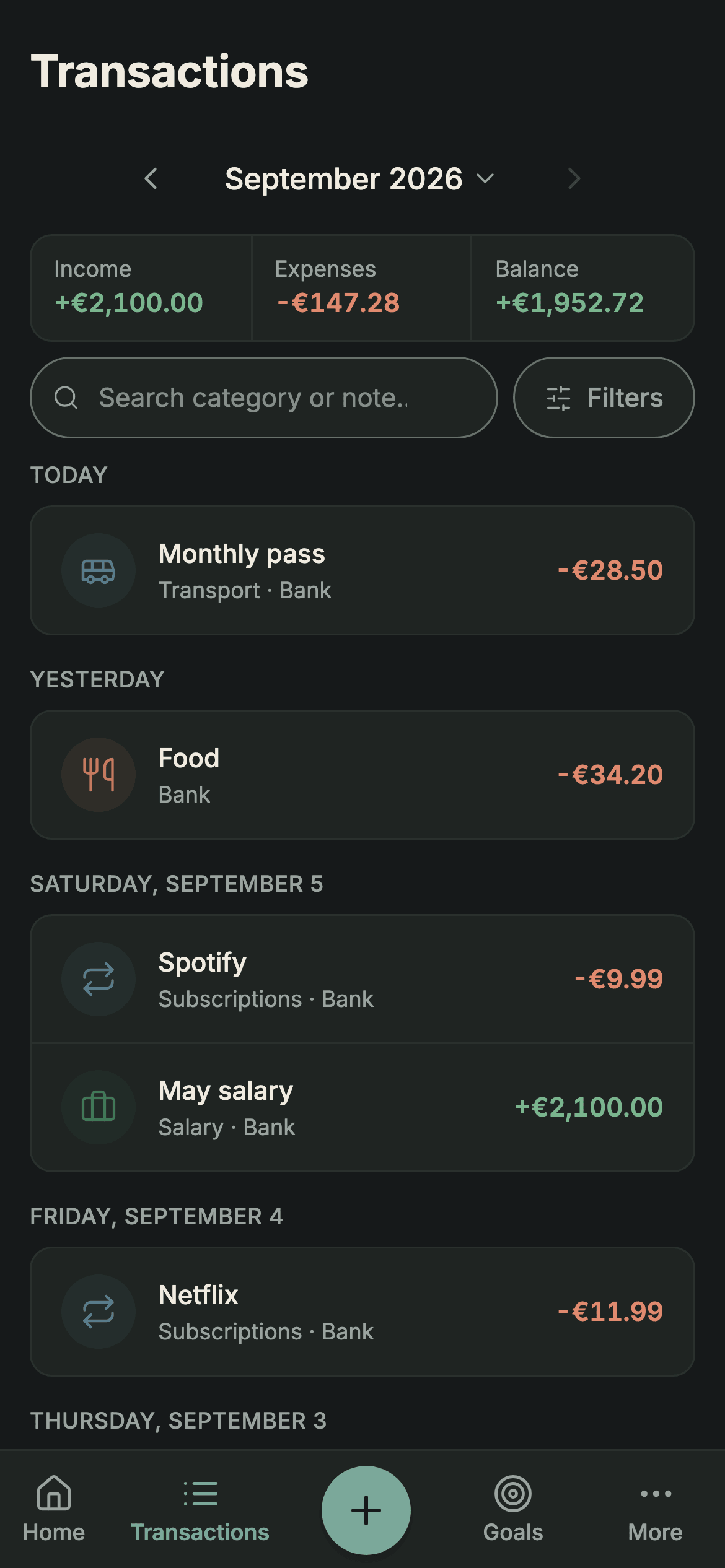
Adding it to the Home Screen
Safari is the documented route used here. It is not the only browser that can offer adding to the Home Screen, but following one set of instructions makes the steps easier to check.
1. Open the website in Safari.
2. Open the Share menu. The position of the button and whether you first open another menu can vary with the Safari layout.
3. Choose “Add to Home Screen”, turn on “Open as Web App” if shown, then confirm with “Add”. Apple’s guide explains how to edit the available actions if the option is missing.
Sources: Apple: turn a website into an app on iPhone · checked on .
The icon then opens the site from your Home Screen. Removing that access is not the same as deleting an account. Before changing phones or clearing browser data, check which records have synced and keep a backup of anything you need.
If the option is missing
Some points to check if the option is missing:
Check the browser and its menus. Safari’s route is described above; another browser may offer the action differently. You can open the address in Safari to follow the same instructions without assuming other browsers cannot add it.
If the link opened inside another app, look for its option to open the page in Safari. The available menu depends on that app, so use the website address directly in Safari if necessary.
In Safari’s Share menu, check whether you need to edit the list of actions to show “Add to Home Screen”. Apple’s current guide includes this step. There is no need to assume that a missing action means the website cannot be added.
A Home Screen access and a web app’s features are different things. Use “Open as Web App” where available, and check how the site opens. An ordinary website access does not by itself add offline records or other features.
Open the icon and check that you reach the intended website in the expected window. That verifies the access; test the functions you need separately, rather than treating the icon or lack of an address bar as proof of every feature.
On Android
On Android, Chrome’s current guide directs you to the website, then the menu beside the address bar, “Install and create shortcut” and “Install”. Follow the prompts shown by your version; the wording and options can vary.
Chrome also documents managing an installed web app from Android settings. Check the functions available in the service you want to use: adding an icon does not establish whether it offers notifications or access without a connection.
Sources: Chrome: use web apps on Android · checked on .
What you gain
You add the web access through the browser instead of downloading it from the App Store. An Apple account is not part of these website steps, but the service can still require its own sign-in or permissions for particular features.
Updates are distributed through the web. You may need a connection or a reload to receive a change, so opening the icon does not guarantee that every update appears immediately.
Storage use depends on the app and the data it keeps. Check your device’s settings if space matters; there is no single size that describes every web app or every native app.
Sumant can be opened on a phone, tablet or computer. A phone may suit recording a purchase, while a larger screen can make reviewing transactions or importing a statement easier. Choose the device that suits the task.
Sumant supports working with available records without a connection. You need to have opened and set up the app first; signing in and syncing require a connection. Adding an arbitrary website to the Home Screen does not guarantee the same offline behaviour.
What you lose
There are also limits to check:
Sumant is accessed through its website rather than an App Store listing. If you search for it only inside the store, use the website address instead.
Check any device feature you rely on, such as lock-screen widgets or shortcuts. Sumant does not currently offer those integrations; installing its web access does not add them.
Sumant does not currently offer push notifications. Adding the Home Screen icon does not enable transaction reminders. Check the features offered by the app separately from the browser’s capabilities.
Sources: WebKit: Home Screen web apps and notifications · checked on .
The steps above use Safari. Other browsers can offer Home Screen access too, so check their current menus rather than treating Safari as an exclusive requirement.
Removing an icon does not confirm deletion of an account or all its data. Clearing local data can affect records that have not synced. Check sync and backups before removing data you may still need.
Where your data ends up
For an app you use to keep transactions, check what is available on your device and what has synced to your account. These answer different questions when you lose a connection or change phones.
In Sumant, recording a transaction saves it on your device first. This lets you continue working with available records without a connection; sync follows when the connection is available.
Do not assume that unsynced records will survive losing a device or clearing its data. Before making that kind of change, check the sync state and keep a backup where appropriate.
With Sumant, signing in enables sync with your account. When you use another device, records that previously synced can be recovered through that account. Do not assume this includes changes that were only saved on the old device and never reached sync.
Check the available export formats before relying on one. Sumant includes a JSON backup on the free plan; CSV and XLSX exports require PRO. A backup or export can help you keep another copy, but downloading one is not an absolute guarantee against losing data.
Sources: Sumant plans · checked on .
Who it makes sense for
For manual expense recording, opening a web app can be a useful option. The time needed depends on the transaction and what you need to check; reviewing the same records on a computer may also be convenient.
For anyone who wants the app to read their bank on its own it changes nothing: that depends on whether the app connects to your bank, not on how it was installed.
If lock-screen widgets or system shortcuts are essential, verify those particular features in the app you choose. On a shared phone, protect your session and sign out when appropriate; access depends on the device and session state, not simply on the installation method.
To decide, try the tasks you need: adding a transaction, finding it again and reviewing your records. Ask about any background or device-specific feature separately. Installation tells you how to open the app, not everything it can do.
Sumant installs this way, on iPhone and Android, and it does not connect to your bank: you log transactions yourself or import the CSV or Excel file you download. If you want to see the inside first, there is how it works, and if you are still comparing options, the seven in the best personal finance apps are gone through one by one.